Schoology Dashboard: A Practical Guide for Students and Families
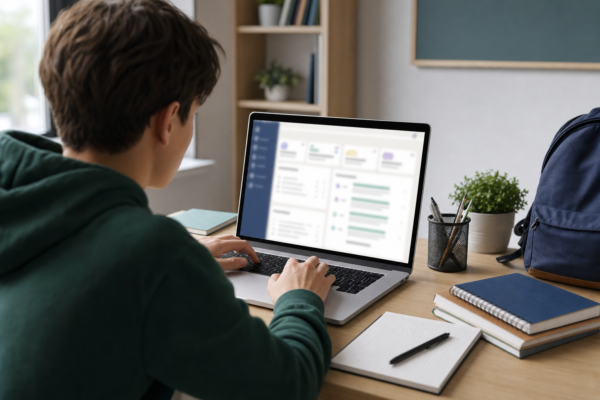
The Schoology dashboard is the main place to organize online schoolwork, check course activity, and move between classes. Instead of opening several pages to find basic information, students can often use the dashboard to view recent updates, upcoming assignments, course cards, messages, and calendar items in one central location. The exact layout may vary depending on a school’s settings and the device you use, but the core navigation is usually straightforward once you know what to look for.
This guide explains how to use the dashboard efficiently, where common tools are located, and what to try when an assignment, course, or grade does not appear as expected.
What the Schoology Dashboard Shows
After signing in, the dashboard typically acts as a quick overview of your Schoology account. It may include a course list, recent activity, upcoming work, announcements, and navigation links. Your school or teacher may enable only some of these features, so do not be concerned if your screen looks different from another student’s.
Common dashboard areas include:
- Course cards or course links: Open a class such as English, mathematics, science, or history.
- Recent activity: Review new posts, shared resources, teacher comments, and other updates.
- Upcoming items: See assignments, quizzes, events, or due dates that have been added to your courses.
- Calendar: View scheduled work and course events by day, week, or month, depending on the available layout.
- Messages and notifications: Check communication from teachers, classmates, or your school.
Think of the dashboard as a starting point rather than a complete list of every task. Some assignments may be easier to find by opening the relevant course and visiting its materials or assignment folders.
How to Navigate the Schoology Dashboard
1. Sign in and confirm your account
Use the Schoology login method provided by your school. Some schools use a direct username and password, while others connect Schoology with a single sign-on system. If you reach a page that does not show your classes, first check that you signed in with the correct school account.
Once you are signed in, look for the main navigation menu. Depending on the platform version and device, it may appear across the top of the page or inside a menu button. This navigation area is usually where you can return to the home page, open courses, access the calendar, and review messages.
2. Open a course
Course cards are often the fastest way to reach a class. Select the course you need, then look for folders, materials, assignments, discussions, or announcements. Teachers may organize content by week, unit, topic, or type of activity.
If you are new to Schoology, spend a minute identifying the course structure before searching for one assignment. Knowing where your teacher places instructions and submissions can save time later. For a more detailed walkthrough of logging in and finding class materials, see this guide to the Schoology student portal.
3. Review recent activity and upcoming work
Recent activity can help you spot new instructions, feedback, or announcements. Upcoming items are useful for planning, but they should not be your only source of information. Open the course page when you need the full assignment description, attached files, rubric, submission requirements, or teacher comments.
Before starting an assignment, check four details:
- What you are expected to submit
- When the work is due and which time zone applies
- Whether a file, link, or specific format is required
- Whether the assignment includes a rubric or additional instructions
Using the Dashboard to Stay Organized
A dashboard is most useful when you turn it into a consistent routine. At the beginning of a study session, review the Schoology dashboard for new announcements and upcoming tasks. Then open each relevant course to confirm the details. At the end of the session, check whether your work was submitted successfully and whether any follow-up action remains.
You can also use a simple weekly process:
- Review the dashboard and calendar at the start of the week.
- Write down major due dates in a planner or personal calendar.
- Open course materials before beginning each assignment.
- Mark completed work only after confirming the submission status.
- Check teacher feedback and notifications before the next class.
Keeping a separate list can be helpful because dashboard views may prioritize recent or upcoming activity rather than every unfinished item. If your school uses Schoology’s calendar tools, filter the view by course when you need to focus on one subject.
How to Check Grades and Feedback
The dashboard may provide a shortcut to grades, but the most complete information is often inside the course or gradebook area. A score may not tell the whole story if an assignment has comments, a rubric, missing-work status, or a revised submission option.
When reviewing a result, compare the score with the assignment instructions. Make sure you are looking at the correct grading period and course. Some grades may remain unavailable until a teacher finishes reviewing the work, and some activities may not be included in the overall course calculation.
For a closer explanation of score details and common problems, read this guide to the Schoology gradebook. You can also learn more about interpreting course results in this resource on checking and understanding Schoology grades.
Common Schoology Dashboard Problems
A course or assignment is missing
First, refresh the page and open the course directly rather than relying only on the dashboard preview. The teacher may have unpublished the item, moved it into another folder, or assigned it only to a specific group of students. It is also possible that the course has not yet been made visible to your account.
If classmates can see the item and you cannot, record the course name and assignment details before contacting your teacher or school technology support. A clear description makes the problem easier to investigate.
The dashboard looks outdated
Sign out and sign in again, then try refreshing the browser or reopening the mobile app. If the issue continues, check whether the browser or app needs an update. Avoid repeatedly submitting an assignment while troubleshooting, since duplicate submissions can create confusion.
Notifications are overwhelming
Review your notification settings if your school allows you to change them. You may be able to adjust email alerts or in-platform notifications for course updates, messages, and submissions. Even with fewer alerts, continue checking the dashboard and course pages because important instructions may not arrive as a separate notification.
Best Practices for Students and Families
Students should learn the difference between a dashboard reminder, an assignment page, and a posted grade. These areas serve different purposes, and relying on only one can lead to missed instructions. Families can support students by asking them to demonstrate where they find upcoming work, feedback, and submission status rather than simply asking whether everything is complete.
Keep login information private, use the school-approved sign-in process, and log out on shared computers. If you suspect an account problem, contact the school instead of creating a second account, which may separate you from your enrolled courses and records.
With a short daily check and a more detailed weekly review, the Schoology dashboard can become a practical command center for schoolwork. Use it to spot what is new, then open each course for the full instructions and confirm important details before submitting anything.





One Comment