
Schoology LMS Login: How to Sign In and Fix Common Access Problems
A successful Schoology LMS login gives students, teachers, and families access to courses, assignments, announcements, grades, and class materials. If the sign-in page will not load or your credentials are rejected, the problem may involve your school’s login address, a forgotten password, a browser session, or an account managed through Google or another identity provider. This guide explains the normal sign-in process and the safest ways to troubleshoot common access issues.
How to complete a Schoology LMS login
Schoology access is usually managed by a school, district, college, or other organization. That means the correct login page may not be the same for every user. Some institutions use a custom Schoology domain, while others direct students and staff through a central portal or single sign-on page.
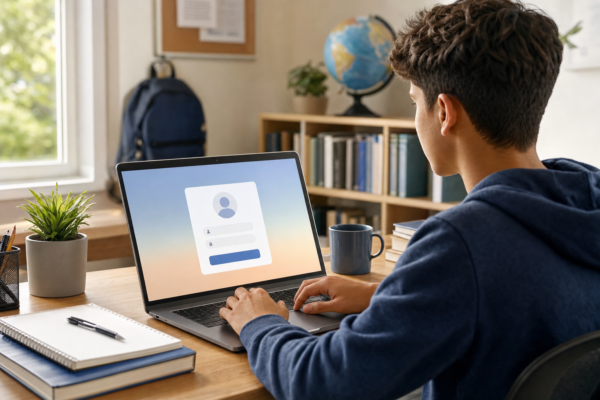
- Open the Schoology login page supplied by your school or organization.
- Enter the username or email address associated with your account.
- Type your password carefully, checking the keyboard layout and Caps Lock key.
- Select the sign-in button and wait for the dashboard or course page to load.
If your school uses Google, Microsoft, or another single sign-on service, choose the matching option instead of entering a separate Schoology password. Using the wrong route can create a loop between login pages or produce an account-not-found message, even when your school account is active.
For a broader overview of the platform, see this guide to Schoology LMS features, benefits, and practical tips.
Why the Schoology LMS login may not work
Login failures are often caused by a small mismatch rather than a major service problem. Before changing account settings, identify what you are seeing. A rejected password, a blank page, and a repeated redirect generally require different solutions.
Incorrect username or password
Re-enter your credentials slowly and make sure there are no extra spaces before or after your username. If your school uses an email address, confirm that you are using the correct school-issued address rather than a personal account. Browser password managers can also fill in an old password, so try deleting the saved entry and typing the current one manually.
Use the password-reset link only if it is available on your organization’s login page. In many schools, passwords are controlled through a central directory, which means the reset must be completed through the school portal or by contacting an administrator. Avoid repeatedly guessing a password because too many attempts may trigger a temporary lockout.
Google or single sign-on problems
If your account is connected to Google, sign out of any personal Google accounts that may be active in the browser, or open a private browsing window and try again. This helps prevent the browser from automatically choosing the wrong account.
Do not create a new Schoology account to solve an access problem unless your administrator specifically tells you to do so. A new account may not be connected to your classes, grades, or school groups. For step-by-step help, read this guide on Schoology login with Google.
Page loading, redirect, or connection errors
When the login page loads incorrectly, try these basic checks:
- Refresh the page once and wait for it to finish loading.
- Open the page in a current version of Chrome, Edge, Safari, or Firefox.
- Clear cached files and cookies for the Schoology site.
- Temporarily disable browser extensions that block scripts, pop-ups, or tracking elements.
- Try a different network if your school Wi-Fi is unreliable.
- Test the page on another device to determine whether the problem is local.
Be cautious with public computers. Do not save your password, and sign out completely when you finish. If the site displays a security warning, confirm that you are using the official address provided by your institution rather than a link from an unknown message.
What to do after signing in
Once you reach the Schoology dashboard, check that your courses and account name are correct. A successful login does not always mean that enrollment information has synchronized correctly. If a class is missing, an assignment cannot be opened, or your grades are not visible, take a screenshot of the issue and note the course name, device, browser, and approximate time. This information can help your teacher or school technology team investigate faster.
Keep your account secure by using a unique password, avoiding shared credentials, and signing out on devices used by other people. Do not send your password through email, chat, or an online form unless you are using an official password-recovery process. If your organization supports multi-factor authentication, complete the additional verification step through the approved method.
Schoology is part of the wider category of virtual learning environments, which organize digital course content and communication. You can learn more about how these platforms developed in the history of virtual learning environments.
When to contact your school or administrator
Contact your teacher, school office, or IT help desk when the normal troubleshooting steps do not resolve the problem. They may need to confirm that your account is active, resend an invitation, correct your email address, unlock the account, or provide the correct organization-specific login page.
Include useful details in your support request:
- Your name and school role, such as student, parent, or teacher.
- The exact login page or portal you used.
- The error message, copied exactly when possible.
- The device, operating system, and browser involved.
- Whether the issue occurs on another device or network.
- Whether you are using a password login, Google, or another single sign-on method.
Never include your password in the request. If you suspect that someone else has accessed your account, change the password through the official system and notify your organization’s support team.
Quick Schoology login checklist
Before contacting support, work through this short checklist:
- Confirm that you are using the login link supplied by your school.
- Check your username, password, Caps Lock, and keyboard language.
- Use the correct Google or single sign-on account if required.
- Try a private window or another supported browser.
- Clear site data if the page keeps redirecting or loading incorrectly.
- Test another device or network.
- Ask your school to verify the account and enrollment if access still fails.
Most Schoology access issues can be narrowed down by checking the login route first, then testing the account and browser separately. Following those steps helps you regain access without creating duplicate accounts or exposing your credentials.


One Comment