
Schoology Login: How to Sign In and Fix Common Access Problems
Schoology login problems are often caused by using the wrong school portal, an outdated password, or a browser session that needs to be refreshed. Whether you are a student trying to open an assignment, a parent checking grades, or a teacher preparing course materials, the right sign-in route can save time. This guide explains how to access Schoology safely and what to do when the normal login process does not work.
How to complete a Schoology login
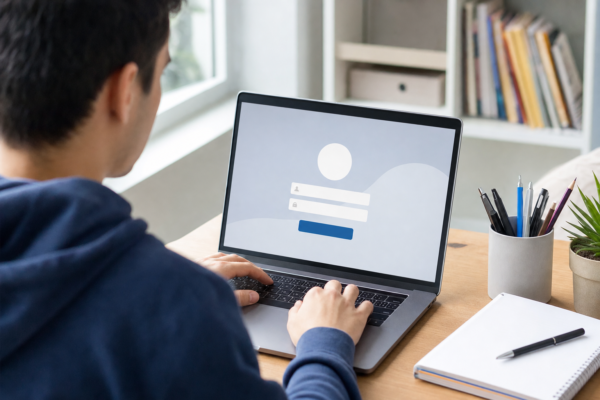
Schoology access is usually connected to your school, district, or organization. That means there may not be one universal sign-in experience for every user. Your school may provide a custom Schoology page, a district portal, or a single sign-on button that connects Schoology with another account.
- Open the Schoology link provided by your school or organization.
- Choose the correct sign-in option, such as a school account, district account, Google, Microsoft, or a standard Schoology username and password.
- Enter your school email address or username carefully.
- Type your password, making sure Caps Lock and keyboard language settings are correct.
- Select the sign-in button and wait for your course dashboard to load.
If you are unsure which sign-in page to use, check your school website, student handbook, welcome email, or learning technology instructions. Searching for a random login page can lead to confusion, especially when several schools use different account systems.
For a broader explanation of courses, assignments, grades, and account roles, read this practical Schoology guide for students, teachers, and families.
What to do when your Schoology login fails
A failed sign-in does not always mean your account is locked. Work through the simplest checks first, then move on to password recovery or school support.
Check your username and password
Re-enter your credentials slowly instead of relying on an old saved password. Confirm that you are using the account assigned by your school rather than a personal email address. If your school recently changed email addresses, usernames, or passwords, your older credentials may no longer work.
It is also worth checking for extra spaces when copying a username or password. On a phone, autocorrect can alter an email address, while a password manager may fill in credentials for the wrong account.
Use the password recovery option
If the sign-in page includes a “Forgot Password” or similar recovery link, select it and follow the instructions. You may need access to the email address associated with your account. In some schools, password changes are managed entirely through a district identity system, so Schoology may direct you to another page.
If you never receive a recovery message, check your spam or junk folder and confirm that you entered the correct email address. If recovery is unavailable or your school manages all passwords centrally, contact the teacher, school office, technology coordinator, or district help desk.
Try a different browser or private window
Old cookies and cached files can interfere with authentication. Open Schoology in a private or incognito window and try again. You can also test another current browser, such as Chrome, Safari, Edge, or Firefox. If the private window works, clear the saved site data for Schoology in your regular browser and sign in again.
Do not clear every saved password unless you know where those credentials are stored. Removing browser data can sign you out of other websites.
Schoology login on a phone or tablet
The Schoology mobile app can be convenient for checking announcements, submitting work, and receiving course updates. Download the official app through your device’s trusted app store, then use the sign-in method supplied by your school.
- Keep the app updated to the latest version available for your device.
- Allow the app to finish loading before entering your credentials again.
- Check whether your school requires a code, QR code, or district selection during setup.
- Switch between Wi-Fi and mobile data if the page will not load.
- Remove and reinstall the app only after confirming that you know your login details.
If the app shows a blank screen or repeatedly returns to the login page, try signing in through a mobile browser. This helps identify whether the problem is with the account or the app itself.
When Schoology is not loading
Sometimes the issue is not your account. A slow internet connection, school network filter, browser extension, or temporary service problem can prevent the dashboard from opening.
First, refresh the page and check another website to confirm that your internet connection is working. Next, disable unnecessary browser extensions temporarily, especially privacy tools or ad blockers that may interfere with redirects. If Schoology works on a different network or device, report those details to your school’s technical support team.
When contacting support, include the device you are using, the browser or app version, the exact error message, and the time the problem occurred. Never send your password in an email or support request.
Tips for a safer Schoology account
Your Schoology account may provide access to assignments, messages, grades, and personal school information. Treat it like any other important online account.
- Use a unique password that you do not reuse on unrelated websites.
- Sign in only through your school’s trusted link or an official app.
- Check the web address before entering your password, particularly after following a message link.
- Sign out on shared computers and avoid saving credentials on public devices.
- Do not share your password with classmates or respond to suspicious requests for account information.
Families and students who share a device should also confirm that the correct account is active before viewing grades or submitting work. Signing out between users can prevent assignments from being posted under the wrong profile.
When to contact your school
Contact your school or district support team if your account is disabled, your username has changed, password recovery does not work, or you cannot access a required course after signing in. Teachers can often help with course enrollment and assignment questions, while the technology or office team usually handles account credentials and portal access.
Before reaching out, write down what you already tried. A short note such as “I used the school link, tested two browsers, and received an invalid password message” gives support staff useful information and can speed up the solution.
Once your Schoology login works, bookmark the correct school portal and keep your recovery information current. A few simple habits can make future access faster and reduce the risk of losing time when an assignment or important announcement is waiting.
For more practical help using the platform after signing in, you can also revisit this Schoology resource for navigating learning tasks and accounts.
Related Reading
- Schoology: A Practical Guide for Students, Teachers, and Families
- Best Luxury Property: Discover Exceptional Homes and Investment Opportunities
- Whatutalkingboutwillis News Latest Updates, Trends, and Viral Buzz Explained
Reference: For background context, see Los Angeles Unified School District on Wikipedia.




2 Comments